
TravelFrame Documentation
Welcome to the documentation for TravelFrame, the ultimate e-ink gadget for adventurers! Whether you are using the plug and play service or hosting your own server, this guide will help you get your hardware assembled and connected.
Hardware Setup
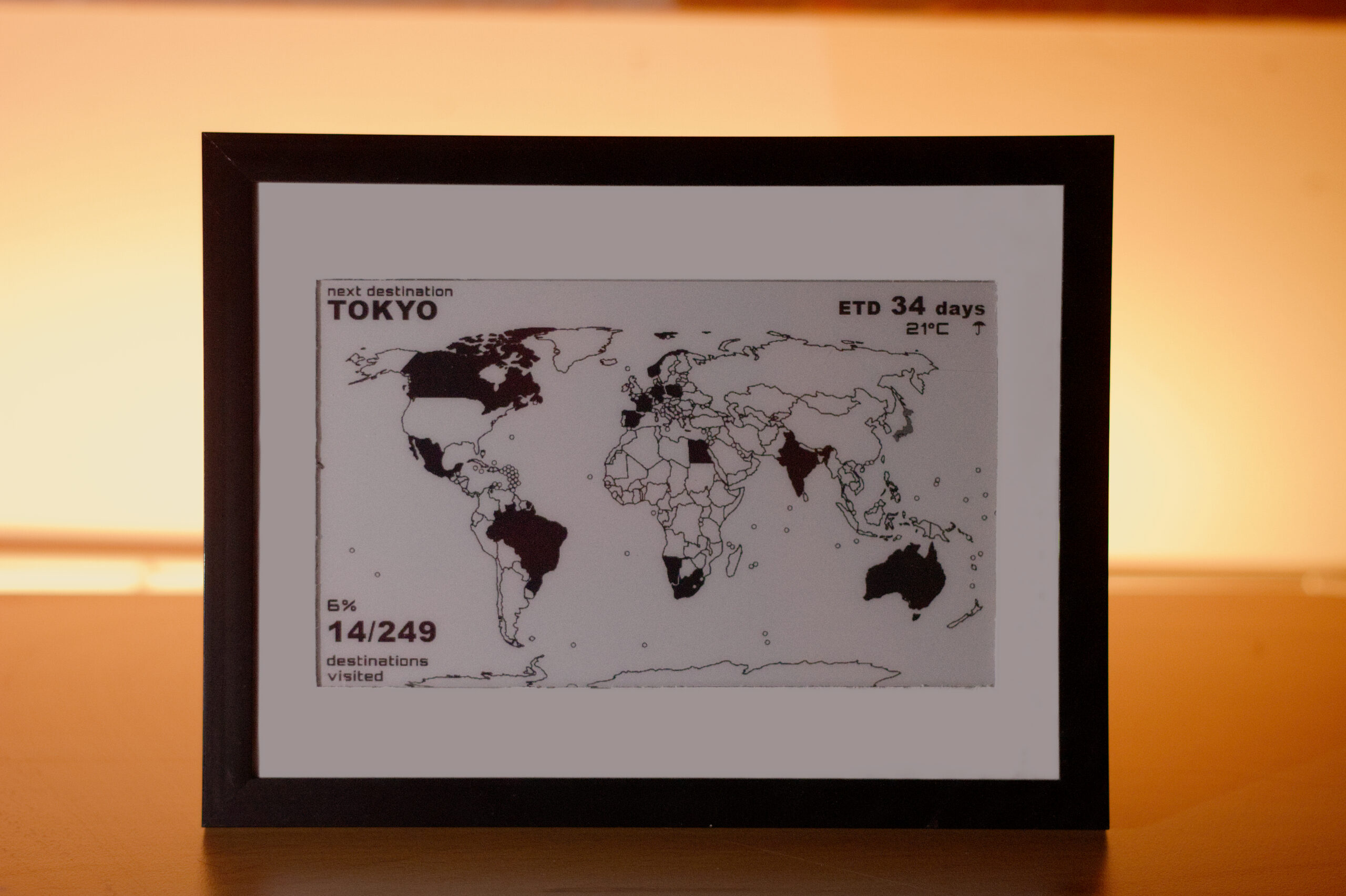
The hardware instructions apply equally to both cloud users and self hosters. Fundamentally TravelFrame is meant to run on low power ESP32 microcontrollers paired with electronic paper displays.
Recommended Hardware
The project is designed around the TRMNL 7.5″ DIY Kit (800×480 monochrome/grayscale e-ink screen). This Kit powered by the ESP32S3 Plus controller is ideal for this use case as it is easy to assemble and has everything you need to get started already in the box. You can find them on many platforms including AliExpress (here) aswell as from Seeed Studio directly (here).
Of course other hardware can be used to. If you chose anything else from Seeed Studios portfolio chances are they will work great with the used eink library used in the client software. Other driver boards will likely need more adjustments to the client side software. If there is an interest in porting the client software to other popular eink drivers please write me an email with your requested board. Should you not want to use the recommended hardware but utilize the TravelFrame Cloud soluion, please write me a short email describing your hardware and i will let you know if its possible to implement.
Enclosure and Case
Fortunately, there are many custom enclosures available for the TRMNL Kit to either 3D print or purchase online, and some kits even include one in the box. In the meantime, I am polishing up my own 3D files for mounting the kit inside a real picture frame, with plans to release them in a few weeks.
Note
Are you interested in a fully assembled TravelFrame? Please get in touch to help me judge the demand here.
Software Setup
Option A – TravelFrame Cloud
If you have 1. a serial license for the TravelFrame Cloud and 2. the recommended hardware TRMNL Kit layed out infront of you, you are ready to go. You can get a serial key here.
To start simply, connect your ESP32S3 to your computer and click the „connect & flash“ button below (make sure to use Chrome, Edge or Safari). Select your ESP32 UART and you are ready to install!
After the successful install, connect to the WiFi named „TravelFrame-Setup“ and wait for the „this WiFi needs to be configured“ message or go to 192.168.4.1 in your browser.
In the WiFi manager site, press „configure WiFI„. Enter your Home WiFi Name in the SSID field and your password in the according field. Lastly enter your serial key in the field and press save. Wait 10 seconds and unplug the board shortly to restart the board. The ESP32 will reboot while you can configure your very personal map here after entering your serial key there. The frame will display your personal map once you first press the „send to travelframe“ button next to the map.
You can always access your personal map by clicking the TravelFrame Cloud button in the top right of the website or by going to map.travelframe.de.
Thank you for supporting this project and happy travelling!
Option B – Self Hosted
The self-hosted TravelFrame version can run on your own server. Idealy a standard Linux setup with Node.js 20+ and npm 10 +. Once set up the server will host a web interface and export the map that the client will download and display on the eink display.
Server
Get the project folder from GitHub here.
1. Install dependencies
Open a terminal in the extracted folder and run:
cd webapp
npm install
2. Build
npm run buildThis compiles the web editor and server. You must run this before starting the server.
3. Start the server
npm run start:serverThe server listens on port 3001 by default. Open http://your-server-ip:3001 in a browser and the map editor should load immediately. The server will re-render the map hourly with updated weather and countdown information.
Notes
Dont expose this server to the internet without taking precaucions and knowing what you are doing. Idealy this should always stay in your home network communicating only between your home server and the frame.
Client
Getting started
Before you configure the software and flash it you should have the Arduino IDE (including the Espressif family of boards) installed aswell as the official Seeed Studio E-Ink library. You can find well written instructions on how to do that directly from Seeed Studio here. Other used librarys are rather more common and can be easily found and installed using the Arduino IDE library manager.
The .ino code can be found in the „client“ folder on the GitHub project. Make sure to also copy the driver.h file. It communicates with the library what specific eink display you have connected.
Configure the TravelFrame
With the code you have to make two critical changes before uploading to your board. First enter your home server address. Then enter your password and WiFi name. Once having configured everything compile and upload to your ESP.
Access your TravelFrame server and configure your map. After pressing „send to TravelFrame„, wait for the ESP32 to pick up the image and happy travelling!
Unsure or Questions?
Please feel free to write me an email at info@travelframe.de!
License
The self-hosted software is free for personal, non-commercial use under the PolyForm Noncommercial License. The TravelFrame Logo is a registered Trademark.